

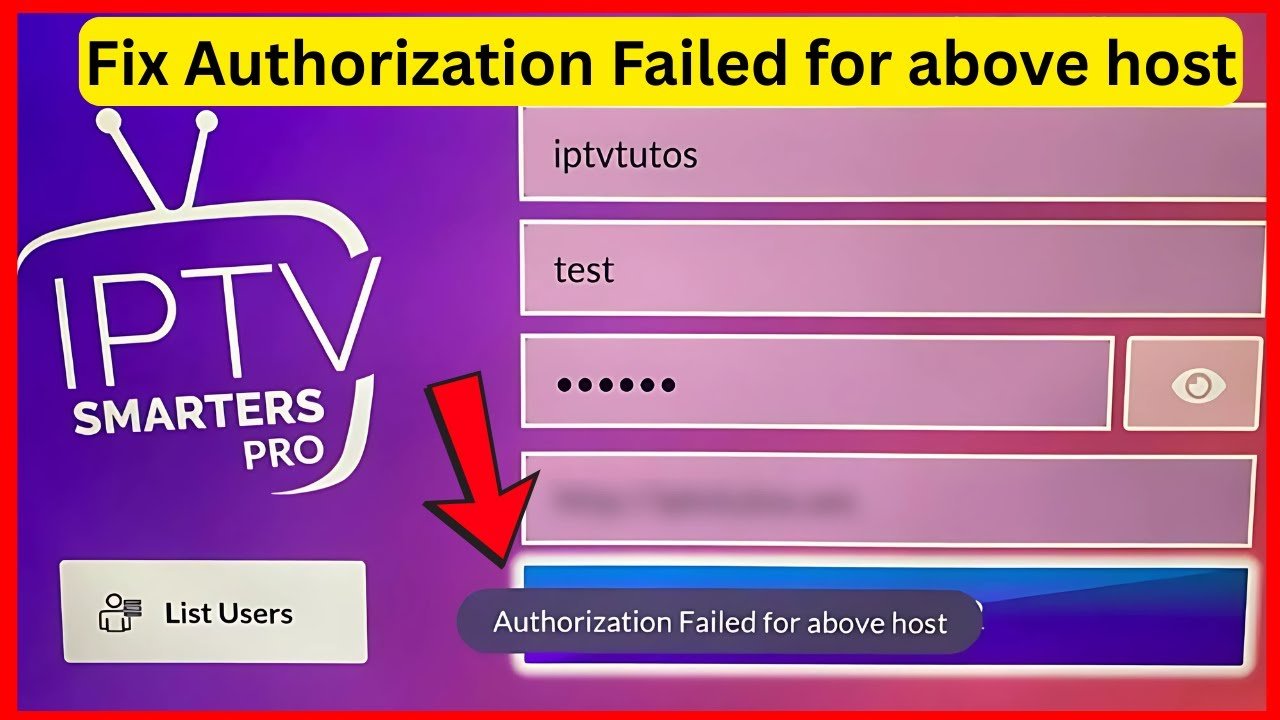
IPTV Smarters Failed to Authorize: Causes, Fixes, and Expert Insights
The rise of IPTV (Internet Protocol Television) has revolutionized the way millions of viewers access television channels, movies, and live sports. Among the popular IPTV solutions, IPTV Smarters stands out due to its user-friendly interface, compatibility with multiple devices, and the ability to manage multiple IPTV accounts in one place. However, even with its many advantages, users occasionally encounter a frustrating issue: the “IPTV Smarters failed to authorize” error. This article explores this issue in depth, providing you with causes, troubleshooting methods, preventative tips, and alternative solutions.
Understanding IPTV Smarters Authorization
Before diving into the causes of authorization failures, it’s important to understand what authorization means in the IPTV Smarters context. Authorization is the process through which your IPTV Smarters app verifies your account credentials with the IPTV server. This ensures that you have a valid subscription and allows you to access your selected channels.
When you see an authorization error, it essentially means that the app failed to connect or validate your credentials. This can be due to several reasons including network issues, incorrect login details, or problems on the server side.
Common Causes of IPTV Smarters Failed to Authorize
Several factors can contribute to the “failed to authorize” problem. Identifying the root cause is essential to apply the correct fix.
1. Incorrect Username or Password
The most straightforward reason is that the login credentials you entered are incorrect. IPTV Smarters requires a username, password, and sometimes a unique device ID to verify access. Even a small typo can lead to authorization failure.
2. Expired IPTV Subscription
If your IPTV subscription has expired or been deactivated, the server will reject your authorization request. Many users overlook checking their subscription status, assuming technical issues are the cause.
3. Server Downtime
IPTV services rely heavily on their servers. Scheduled maintenance or unexpected server outages can result in authorization errors, even if your credentials are correct.
4. Device Limit Exceeded
Many IPTV providers limit the number of devices that can be connected simultaneously. If you exceed this limit, additional login attempts may fail authorization.
5. Network Issues
A weak or unstable internet connection can prevent IPTV Smarters from communicating with the server, leading to an authorization error. This is especially common with mobile networks or Wi-Fi connections experiencing interference.
6. App Version Incompatibility
Running an outdated version of IPTV Smarters can cause compatibility issues. Some providers require the latest app updates to maintain security and functionality.
7. Firewall or VPN Interference
Some networks block IPTV traffic, and VPNs or firewalls may prevent your device from connecting to the server, resulting in failed authorization.
Troubleshooting IPTV Smarters Failed to Authorize
Here are practical steps you can take to resolve this issue:
1. Verify Your Login Credentials
-
Double-check your username, password, and URL.
-
Ensure there are no spaces or incorrect characters.
-
If you recently changed your password, make sure the app has the updated information.
2. Check Subscription Status
-
Contact your IPTV provider to confirm your subscription is active.
-
If expired, renew it to regain access.
3. Test Your Internet Connection
-
Ensure you have a stable internet connection with adequate speed.
-
Consider switching networks or restarting your router to improve connectivity.
4. Update IPTV Smarters
-
Check the app store or official website for the latest version.
-
Install updates and restart the app.
5. Clear App Cache
-
Clearing the cache removes temporary files that may be causing conflicts.
-
On Android, go to Settings → Apps → IPTV Smarters → Storage → Clear Cache.
-
On iOS, uninstall and reinstall the app.
6. Restart Your Device
-
Sometimes, a simple device restart can resolve authorization errors by refreshing network and app settings.
7. Disable VPN or Proxy
-
If you use a VPN, try disabling it temporarily.
-
Some IPTV providers block certain IP addresses for security reasons.
8. Contact Your IPTV Provider
-
If none of the above solutions work, contact your provider.
-
Provide them with your username, device ID, and error details for faster troubleshooting.
Advanced Fixes for Persistent Issues
For tech-savvy users, there are advanced steps to resolve stubborn authorization issues:
1. Reset Device ID
-
Some IPTV services tie your subscription to a specific device.
-
If your device ID has changed, request a reset from your provider.
2. Switch Servers
-
Some IPTV providers have multiple servers for load balancing.
-
Changing the server URL in IPTV Smarters may resolve authorization failures.
3. Use a Different Device
-
Testing your credentials on another device can help identify whether the issue is device-specific.
4. Check for IP Restrictions
-
Some IPTV providers restrict access based on your geographic location.
-
Use a VPN with a server in the provider’s approved region if necessary.
Preventing IPTV Smarters Authorization Issues
While some errors are unavoidable, you can take measures to minimize the risk:
-
Always double-check your credentials.
-
Keep your subscription active and renew before expiration.
-
Maintain a stable internet connection.
-
Update IPTV Smarters regularly.
-
Limit the number of devices connected simultaneously.
-
Use official IPTV servers and avoid third-party apps that may interfere with authorization.
Alternatives to IPTV Smarters
If authorization issues persist, or if you simply want to explore other options, here are some reliable alternatives:
1. TiviMate
-
Popular among Android users.
-
Supports multiple playlists and EPG integration.
-
Frequent updates ensure compatibility.
2. Perfect Player
-
Compatible with Android and Windows.
-
Offers advanced channel management.
-
Supports M3U and XSPF playlists.
3. GSE Smart IPTV
-
Available on iOS, Android, and Smart TVs.
-
Allows custom playlist import.
-
Features advanced streaming options.
Expert Insights: Why Authorization Issues Are Common
Experts note that IPTV Smarters authorization failures are often caused by a combination of user-side errors and provider-side limitations. While incorrect login details and device restrictions are common, server overload, regional blocks, and outdated apps contribute significantly. Providers that maintain multiple servers and actively manage subscriptions see fewer complaints.
Additionally, users should be aware that IPTV services are not immune to regional internet restrictions or ISP throttling, which can interfere with authorization even when credentials are correct.
Conclusion
Encountering an IPTV Smarters failed to authorize error can be frustrating, but understanding the causes and following systematic troubleshooting steps often resolves the issue quickly. By verifying credentials, checking your subscription, updating the app, and ensuring stable network conditions, most users regain access without issue. Advanced measures like device ID reset, server switching, or contacting your provider further help when problems persist.
For those who experience frequent authorization failures, exploring alternatives such as TiviMate, Perfect Player, or GSE Smart IPTV may offer a more seamless experience.
Ultimately, staying informed about app updates, subscription status, and network conditions ensures that your IPTV Smarters experience remains smooth, reliable, and enjoyable.
