

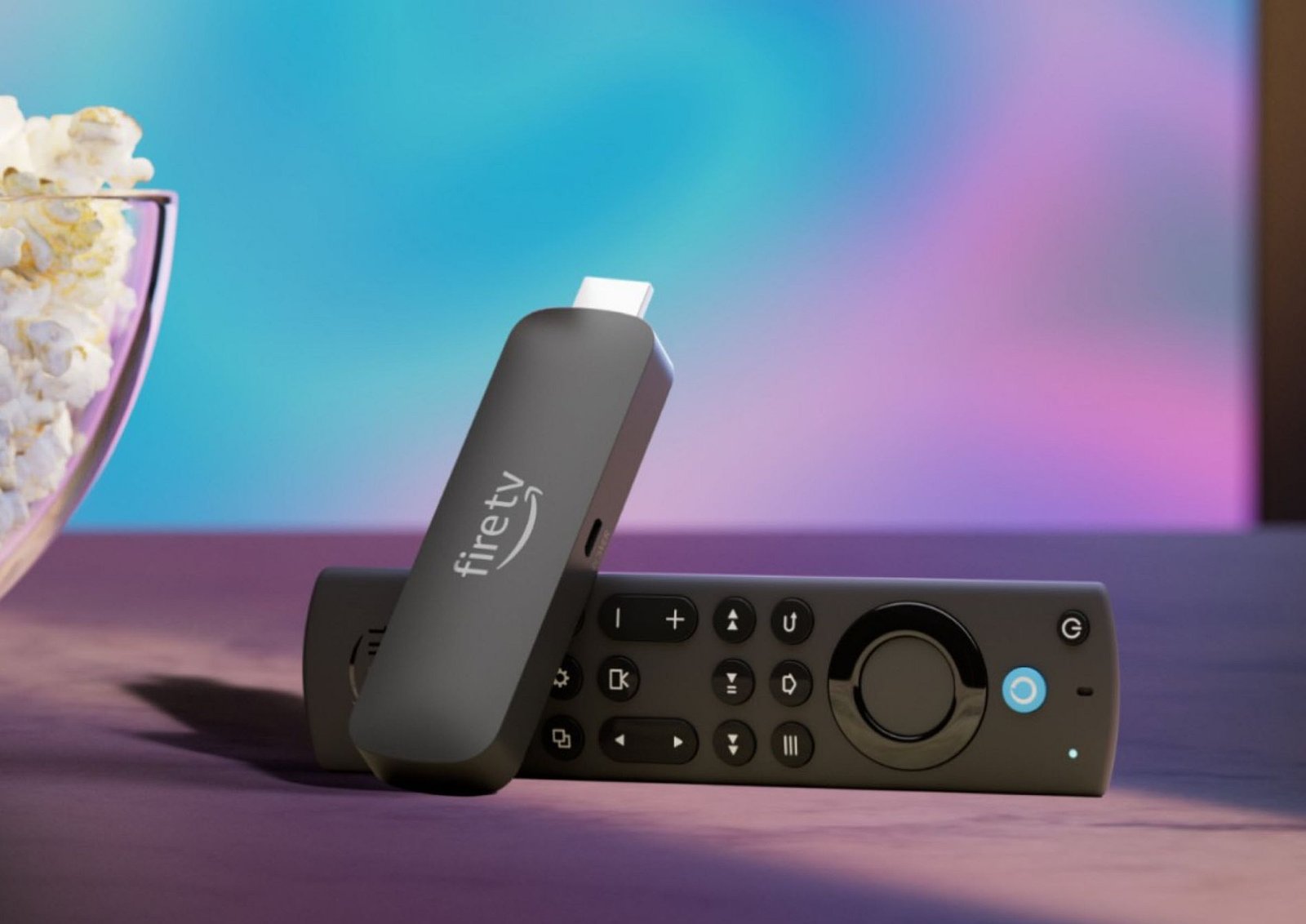
The Complete, Legal Guide to Customizing and Optimizing Your Fire TV Stick — What “Jailbreaking” Really Means and Safer Alternatives
Intro — Why this guide exists
Fire TV Stick (often called “Firestick”) is one of the most popular streaming devices. It’s affordable, portable, and can unlock a world of streaming, apps, and smart-TV features. Because it’s flexible, lots of people talk about “jailbreaking” Firesticks — a loaded term that often means altering the device to run third-party software or access content the manufacturer didn’t intend.
This guide gives a comprehensive, lawful, and practical approach: what people mean by “jailbreak,” the legal and security implications, safe customization you can do today, how to get more from your Firestick without breaking laws or exposing yourself to malware, and hands-on tips to boost performance and privacy. If you want a more powerful, personalized streaming experience — this is your ethically sound playbook.
Table of contents (quick navigation)
- What does “jailbreak a Firestick” mean?
- Legality and risks — software, piracy, warranties, and security
- Safe, legal alternatives to achieve common “jailbreak” goals
- Must-have official apps and free, legal streaming sources
- Customization without risk — interfaces, settings, and profiles
- Performance tuning — speed, storage, and network tips
- Privacy, VPNs, and what they can — and can’t — do
- Parental controls and household management
- Advanced, but safe, tips for power users (no piracy)
- Troubleshooting common problems
- Content strategy: how to organize apps and media libraries
- Final thoughts — balance between flexibility and safety
- Appendix: quick checklist and resources
1) What does “jailbreak a Firestick” mean?
When people say “jailbreak my Firestick,” they usually mean one or more of the following:
- Sideloading apps that aren’t in Amazon’s official app store (installing APKs).
- Installing media players or add-ons that make it easy to stream content from non-official sources.
- Altering system settings or using third-party launchers to change the Fire TV UI.
- Installing software that bypasses paywalls, subscriptions, or copyright protections.
Important: several of these activities can be legal (e.g., installing a legitimate app outside the Appstore for a developer use case), but other activities — specifically using installed software to access pirated content — are illegal in many jurisdictions and can expose you to civil and criminal liability. Even beyond legality, installing untrusted third-party apps increases the risk of malware, credential theft, and device instability.
2) Legality and risks — software, piracy, warranties, and security
Legal risks
- Copyright infringement: Using apps or add-ons to stream copyrighted content without permission is illegal in many countries. This can lead to takedown notices, fines, or worse.
- Terms of service violations: Modifying devices beyond manufacturer guidelines or using software to bypass content protection can violate Amazon’s terms and could lead to account suspension.
Security risks
- Malware and spyware: Third-party APKs from untrusted sites can contain malicious code that steals passwords, mines cryptocurrency, or creates backdoors.
- Phishing / credential leakage: Some rogue apps mimic streaming services and prompt you to enter account credentials; those can be harvested.
- Network exposure: Malicious apps may open network services on your device that expose your home network.
Warranty and support
- Warranty voiding: Altering the device or installing certain system-level modifications may void warranty or make Amazon support unwilling to help.
- Bricking risk: Improper modifications can render the device unusable.
Practical blowback
- Unreliable performance: Unofficial add-ons are often poorly maintained — expect crashes and buffering.
- Legal risk for providers: Some IPTV or streaming providers who supply pirated streams can be shut down, leaving you with no service and possible legal trouble.
Bottom line: If your goal is to access pirated content or bypass subscription systems, stop — I can’t help with that. But if your goal is to customize, add legitimate apps, or improve performance and privacy — keep reading. That’s exactly what this guide covers.
3) Safe, legal alternatives to achieve common “jailbreak” goals
Below are common reasons people consider “jailbreaking” and legal ways to accomplish them:
Want more apps than the Amazon store offers?
- Use verified sideloading for legitimate apps: Some developers distribute APKs for beta testing or for devices not supported by app stores. Only install APKs from the developer’s official site or other trusted sources (Google Play via APKMirror, developer’s GitHub).
- Use official app stores: Where possible, use the Amazon Appstore or apps that support Fire TV officially.
Want a better media center experience (like Kodi)
- Kodi itself is a legal open-source media player. Installing Kodi is legal; it becomes illicit only when used with pirate add-ons. Use Kodi to organize local media, play legally purchased content, or stream from legitimate add-ons.
- Use Plex or Emby: These let you run your own media server and stream your collection to the Firestick legally.
Want to add apps not present in your country?
- Look for official region support or ask the app developer to release in your country.
- Use accounts on legitimate international storefronts only if it complies with regional terms and laws.
Want to change the Fire TV interface?
- Use available settings and user profiles to customize experience.
- Install third-party launchers with caution — prefer those with good reputations and reviews; avoid any that require system-level modifications.
4) Must-have official apps and free, legal streaming sources
Here’s a solid list to get the most from your Firestick without stepping into illegal territory.
Subscription apps (popular & legitimate)
- Netflix
- Amazon Prime Video
- Disney+
- Hulu
- HBO Max / Max (where available)
- Apple TV+
- Paramount+
- Peacock
Free, ad-supported lawful streaming services
- Tubi — lots of movies and TV for free.
- Pluto TV — linear “channels” and on-demand.
- Crackle
- Plex (free content + media server features)
- IMDb TV (where available)
- YouTube — both free and premium content.
- Local broadcaster apps and network apps — many networks offer free content.
Live TV & sports (legal options)
- Official apps for ESPN, FOX Sports, NBC Sports allow authenticated streaming with cable or subscription.
- Sling TV, YouTube TV, Hulu + Live TV, FuboTV — paid live TV services.
Media center & personal libraries
- Plex — turns your PC/NAS into a media server with beautiful UI.
- Emby — similar to Plex.
- Kodi — open source media player. Use it for local files and legitimate streaming add-ons only.
5) Customization without risk — interfaces, settings, and profiles
You can personalize the Firestick experience a lot while staying safe. Here’s how to do it effectively.
Profiles and household management
- Create multiple profiles so each family member has their own home screen and app layout.
- Use Amazon Household to share Prime benefits and control purchases.
Home screen organization
- Pin your favorite apps to the home row for quick access.
- Use folders (where available) or order apps by frequency of use to minimize clutter.
System settings worth adjusting
- Display & Sound: Match video resolution and HDR settings to your TV for sharp images.
- Sleep & Screensaver: Adjust screensaver timeout and idle sleep for convenience and to prevent burn-in on some displays.
- Notifications: Turn off unnecessary notifications to avoid interruptions during viewing.
Accessibility features
- Closed captions, audio descriptions, and text scaling make the device usable to everyone — configure in Accessibility settings.
6) Performance tuning — speed, storage, and network tips
A few practical steps will make your Firestick snappier and reduce buffering.
Network
- Prefer wired when possible: Use an Ethernet adapter for Firestick or connect your TV directly. Wired is faster and more stable.
- Improve Wi-Fi: Position the router higher and centrally; avoid signal-blocking structures. Use a dual-band router (5 GHz is faster and less congested than 2.4 GHz).
- Reduce congestion: Pause downloads or heavy streaming on other devices when watching high bit-rate content.
Storage & cache management
- Uninstall unused apps: Free up storage by removing what you don’t need.
- Clear app cache: For apps that allow it, clear cache periodically to avoid sluggish behavior.
- Use external storage with caution: Some Fire TV models support OTG drives to expand storage. Follow manufacturer guidance.
Background processes
- Limit background apps: Close apps you’re not using. Avoid third-party “task killers” — they often make things worse.
Device choice matters
- Use a faster Fire TV model if you need 4K HDR, Dolby Atmos, or better performance. Older Firestick models have limited RAM and CPU, and may struggle with modern streaming demands.
7) Privacy, VPNs, and what they can — and can’t — do
Privacy is a valid concern. VPNs are commonly suggested; here’s a clear, legal, and safe way to think about them.
What VPNs do
- Encrypt your internet traffic between your device and the VPN server.
- Hide your IP address from the services you connect to.
What VPNs don’t do
- Legitimize illegal activity. Using a VPN does not make piracy legal.
- Fix poor home networks. A VPN cannot increase bandwidth beyond your ISP’s limits and can sometimes reduce speed.
When to use a VPN (legally)
- Protecting privacy on public Wi-Fi (e.g., you’re using the Firestick in a hotel — VPN keeps your traffic private from nearby attackers).
- Secure remote access to your home server when you are away.
- General privacy preference (some people prefer encrypted DNS and ISP privacy).
Choosing a VPN
- Pick reputable providers with no-log policies audited by third parties.
- Avoid free VPNs that often monetize via data collection.
- Check platform support for Fire TV or router-level installation.
Router-level VPNs vs device VPNs
- Router-level installation protects every device on your network, but is more complex to set up.
- Device-level installation is easier and allows you to selectively route traffic.
8) Parental controls and household protection
If kids use your Firestick, configure parental settings:
Amazon tools
- PIN protection for purchases and app installs.
- Restriction settings to block content by rating.
- FreeTime / Amazon Kids features provide kid-safe profiles and parental controls.
App-level controls
- Many streaming apps include their own parental control settings (Netflix profiles, YouTube kids, Disney+ kids mode).
Best practices
- Create kid profiles with appropriate content limits.
- Disable in-app purchases or require a PIN for purchases.
- Review watch history occasionally and discuss safe viewing habits.
9) Advanced, but safe, tips for power users (no piracy)
If you’re comfortable with tech and want to push your Firestick further while staying legal, here are advanced options.
Use Plex/Emby with a NAS
- Host your media on a Network Attached Storage (NAS) and use Plex on Firestick to stream your personal collection in high quality.
Use developer options (carefully)
- Enable developer options only if you know what you’re doing — they’re useful for debugging apps or using developer tools.
- Avoid changing system files or settings you don’t understand.
Back up and restore
- Export settings and libraries from apps that support it. Regular backups reduce the risk when experimenting with new setups.
Home automation and integrations
- Integrate with Alexa for voice control and routines.
- Use smart home hubs to create a cinematic experience (e.g., dim smart lights when playing movies).
10) Troubleshooting common problems
Issue: Buffering or poor video quality
- Check internet speed (Netflix recommends 25 Mbps for 4K).
- Switch to 5 GHz Wi-Fi or wired Ethernet.
- Close background apps, and restart the Firestick.
Issue: App crashes or freezes
- Clear app cache, update the app, or reinstall.
- Ensure your Firestick OS is up to date.
- If persistent, check whether the app recently changed minimum requirements.
Issue: Remote not working
- Replace batteries, re-pair the remote, or use the Fire TV app as a temporary remote.
Issue: Storage full
- Uninstall unused apps, clear caches, and consider OTG storage where supported.
Issue: App not available in your store
- Contact app developer for official availability. Avoid unofficial stores that may distribute pirated or unsafe APKs.
11) Content strategy: organize apps and media libraries like a pro
A good content strategy helps you spend less time searching and more time watching.
Categories and shortcuts
- Create categories by type (TV, Movies, Sports, Kids).
- Use top-row favorites for daily apps.
Use Plex/Kodi metadata
- Plex and Kodi can download metadata (covers, descriptions). Keep your media well-named and organized for best results.
Watchlists and queues
- Use app watchlists (Netflix, Prime, Disney+) to collect shows; clear old items regularly.
12) Final thoughts — balance between flexibility and safety
A Firestick is a versatile and inexpensive way to modernize your TV. The temptation to “jailbreak” comes from wanting more flexibility — but the risks of illegal streaming, malware, and warranty problems outweigh short-term benefits. By using the legal alternatives and tweaks covered here, you can unlock most of the same conveniences safely:
- Personalize the UI, profiles, and accessibility settings.
- Use Plex or Kodi responsibly for personal media.
- Install verified apps and maintain good security hygiene.
- Use a reputable VPN for privacy (not to break laws).
- Prioritize router and network improvements for less buffering.
- Keep kids safe with profiles and parental controls.
13) Appendix: Quick checklist and resources
Quick checklist for a safe, powerful Firestick setup
- Keep Fire OS updated.
- Install apps only from trusted sources.
- Use strong passwords and enable multi-factor authentication on streaming accounts.
- Set up parental profiles and PIN for purchases.
- Use wired Ethernet or a strong 5 GHz Wi-Fi signal for 4K streaming.
- Back up important app settings (Plex library, etc.).
- Use a reputable VPN for privacy on public networks.
- Regularly clear caches and uninstall unused apps.
Recommended reading (official sources)
- Amazon Fire TV support pages (for device updates and official troubleshooting).
- Plex, Kodi, and Emby official documentation (for media server setup).
- Your VPN provider’s official guides (for platform-specific setup).
Closing — how I can help next
If you want, I can:
- Create a downloadable step-by-step checklist tailored to your Firestick model and home network.
- Draft a personalized home screen layout and app organization plan based on the services you use (tell me which ones!).
- Produce a short troubleshooting cheat-sheet you can print and keep next to your TV.
