

How to Set Up Your IPTV Subscription (Like I’m Sitting Beside You)
Here’s the thing—I remember the first time I tried IPTV subscription. I was staring at my Smart TV, thinking, “Okay… how does this even work?” Honestly, it felt like trying to assemble a piece of furniture without the manual. But after a few hiccups, some “lessons learned the hard way,” and a lot of trial and error, I figured it out.
So, imagine I’m sitting right next to you, cup of coffee in hand, guiding you through the process. Here’s everything you need to know.
Step 1: Choose the Right IPTV Provider
Think of choosing a provider like picking a restaurant. You want good quality, reliable service, and no nasty surprises. I personally went with Force IPTV because it covered all my bases:
-
HD and 4K streaming
-
International channels
-
Multi-device support
-
Friendly support
Lesson learned the hard way: I first tried a cheap, unknown provider. Streams kept buffering, channels dropped randomly, and I spent more time refreshing than watching. Sometimes, it’s worth paying a bit more for peace of mind.
Step 2: Pick Your Streaming App
Installing the right app is like organizing your playlist before a big party—you don’t want chaos when everyone starts streaming. Some popular apps:
-
IPTV Smarters – beginner-friendly, reliable
-
TiviMate – great for customization
-
Smart IPTV – clean interface, easy setup
Quick Tip: Make sure your app supports multi-language menus if you’re switching regions or watching international channels.
Step 3: Enter Your Subscription Credentials
Now, you’ll have a username and password from your provider. Think of it as the key to your entertainment kingdom. Enter it carefully.
Mini story: I once mistyped my code, and the system locked me out for 15 minutes. Lesson learned: double-check before hitting “OK.”
Step 4: Organize Your Channels
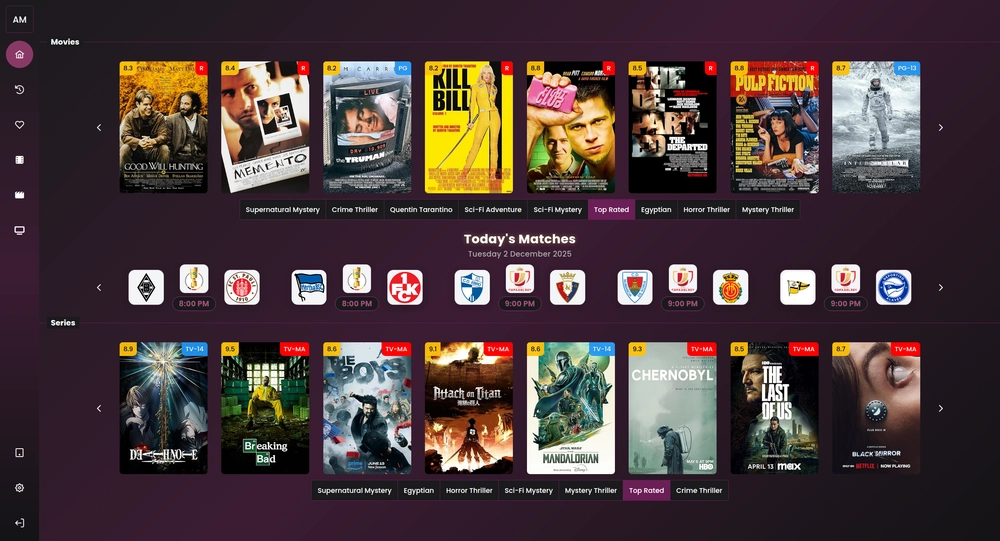
It’s like arranging your playlist. Sports in one folder, movies in another, kids’ content in a third. This makes navigation effortless.
Lesson learned: I initially left all channels in one long list. I wasted 10 minutes scrolling to find a show. Don’t do what I did—organize early.
Step 5: Explore Hidden Features
Most IPTV apps have neat extras:
-
EPG (Electronic Program Guide): Know what’s live or upcoming
-
Favorites: Quickly access your go-to channels
-
Recordings: Some apps let you save content for later
Analogy: It’s like finding secret tracks on an album—you didn’t know they existed, but once you do, you can’t go back.
Step 6: Optimize Your Internet Connection
HD and 4K streams need decent bandwidth. Use an Ethernet cable if possible, or make sure your Wi-Fi is strong.
Lesson learned: I tried streaming 4K on a shaky Wi-Fi connection. Buffering every 10 seconds. Nightmare! Upgrade your plan or switch to wired if you want smooth sailing.
Step 7: Multi-Device Setup
The beauty of IPTV is flexibility. Watch on your Smart TV, tablet, or phone simultaneously.
Mini story: I was cooking, my partner was on the living room TV, and my kid was watching cartoons on a tablet. Total harmony.
Quick tip: Check your provider’s device limits before signing up.
Step 8: Customize for Your Viewing Habits
-
Sports fan? Make a folder for live games
-
Movie buff? Favorite your top movie channels
-
Family-friendly? Set parental controls
Analogy: Customizing IPTV is like decorating your living room—you want comfort, style, and easy access to what you love.
Step 9: Regular Updates and Maintenance
Apps get updates, providers add channels, and sometimes guides change. Keep everything updated.
Lesson learned: I ignored updates once; the guide stopped showing new channels, and I panicked. Don’t let this happen to you.
Step 10: Troubleshooting Tips
-
Buffering: Check your internet speed
-
Missing channels: Verify subscription status
-
App crashing: Restart and update the app
Think of it like patching a small leak in a pipe—it’s minor if handled quickly.
Step 11: Enjoy and Explore
Once setup is done, it’s pure enjoyment. Explore channels, discover new shows, and watch your favorite content anytime.
Mini tip: Try new genres occasionally—you might find a hidden gem.
Summary
Setting up an IPTV subscription is:
-
Pick a reliable provider
-
Install the right app
-
Enter credentials carefully
-
Organize channels efficiently
-
Explore hidden features
-
Optimize internet
-
Setup on multiple devices
-
Customize viewing habits
-
Keep apps updated
-
Troubleshoot smartly
-
Enjoy and explore
Even if you stumble along the way, the experience is rewarding. With a little patience and these tips, you’ll be streaming like a pro.
Meta Fields
-
Meta Title: Ultimate IPTV Subscription Setup Guide
-
Meta Description: Learn how to set up an IPTV subscription step-by-step, with practical tips, analogies, and lessons learned the hard way for smooth streaming.
3 Image Alt-Text Ideas
-
“Smart TV displaying IPTV subscription channels”
-
“User organizing IPTV channels into folders”
-
“Family enjoying IPTV subscription on multiple devices”
